Best Budget CS2 Setup: Mouse, Mousepad and Monitor Under $150
A complete CS2 peripheral starter setup under ~$150 (mouse, mousepad, and monitor), each pick grounded in cs2pedia's dataset of 1,000+ pro profiles, with the honest gap to the pro tier.
Three peripherals decide your CS2 input chain: the mouse you aim with, the mousepad it glides on, and the monitor you read the duel on. Everything else (case, RGB, the headset stand) is cosmetic to your hit rate.
Most “budget CS2 setup” guides answer a different question, listing GPUs and CPUs, which matters for frames but not for the feel of the game. This one covers the input chain, end to end, for roughly $150 total: about $35 on the mouse, $25 on the mousepad, and $90 on the monitor.
Every pick either shows up in cs2pedia’s pro dataset or shares its hardware DNA with gear that does, so you’re buying budget without buying blind.
The Setup at a Glance
| Component | Pick | Budget | Why it’s here |
|---|---|---|---|
| Mouse | Razer DeathAdder V3 HyperSpeed | ~$40 | Budget wireless, real pro usage in the dataset |
| Mousepad | SteelSeries QcK+ | ~$25 | The QcK cloth surface tons of pros run, in a cheap size |
| Monitor | ASUS TUF VG259QM | ~$90 | 280Hz IPS, the floor worth buying for CS2 in 2026 |
That lands the whole input chain under $150 if you shop the monitor on sale, or comfortably under $170 at full price. Each component is broken down below, with the honest gap to what the pro field actually runs.
The Mouse: Razer DeathAdder V3 HyperSpeed (~$40)
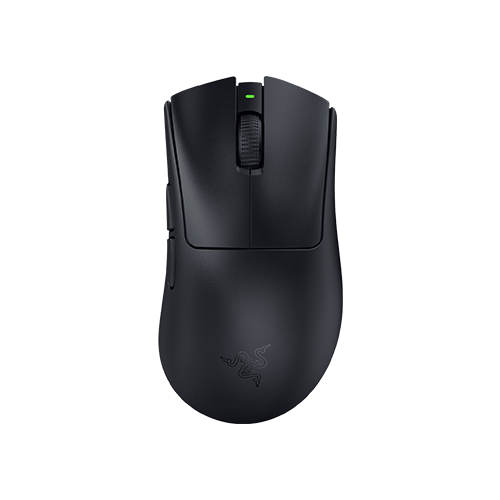
Razer DeathAdder V3 HyperSpeed
The rare budget mouse that pros actually appear on in the dataset. ~55 g wireless, PixArt 3395 sensor, the same sensor class as far more expensive flagships.
The mouse is the single biggest raw-aim lever you control, so it’s where a budget setup should spend first. The Razer DeathAdder V3 HyperSpeed is the rare budget mouse that pros actually appear on in our dataset rather than just a spec-sheet lookalike. It’s a wireless 55-gram ergonomic shape running a PixArt 3395 sensor, the same sensor class that sits inside far more expensive flagships.
Sensor quality stopped being a differentiator years ago; every current PixArt 3395 tracks cleanly enough that you will never feel a tracking flaw in a CS2 duel. What you’re paying flagship money for elsewhere is the wireless link tier, the shell material, and a few grams. At this price you give up some of that and lose nothing that touches your aim.
If you don’t care about wireless and want to spend even less, the Logitech G305 is the wired-budget standard at around $30. It’s heavier and older, but it’s a proven shape with a reliable sensor, and it appears in the pro dataset too.
Wireless is the default across the pro field now (the latency argument that justified wired in 2018 is long dead), so the DeathAdder V3 HyperSpeed is the better buy if the extra $10 is there. The G305 is not a downgrade in aim, only in convenience.
What you’re giving up vs the pro tier: the table below is what the field actually runs, and the budget picks aren’t on top of it.
The most-used mice up there cost three to four times the DeathAdder V3 HyperSpeed. The gap you’re paying for is real but narrow:
- a lighter shell (the top picks sit under 60 grams without feeling cheap)
- an 8 kHz wireless link versus 1000 Hz (polling rate is how many times per second the mouse reports its position; 1000 Hz is the long-standing baseline and is completely fine)
- a premium build
None of that changes whether your crosshair lands on a head. You’re buying refinement, not accuracy.
The Mousepad: SteelSeries QcK+ (~$25)
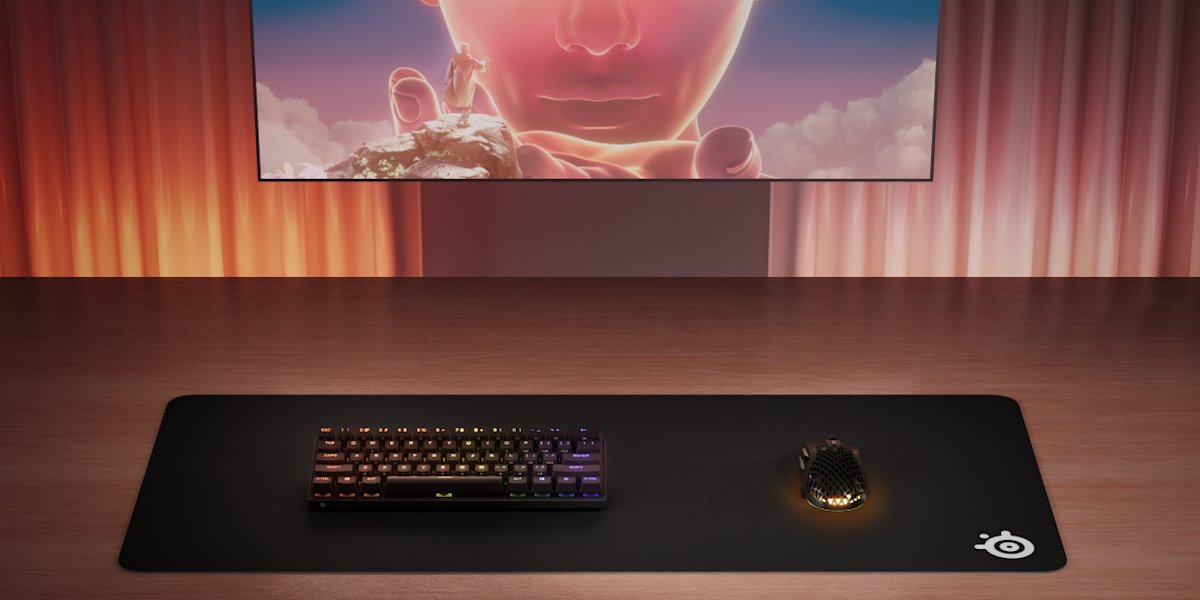
SteelSeries QcK+
The QcK cloth surface, one of the most-used surfaces in the pro field, in a large size at a budget price.
A mousepad feels like the part you can cheap out on, and it’s the part you shouldn’t. The surface is what every micro-correction actually happens on. A glitchy or inconsistent pad sabotages a good mouse, and a large one matters more at the low DPI that competitive players run, where a single flick can cross most of the cloth.
(eDPI, DPI multiplied by in-game sensitivity, is the only sensitivity number that compares fairly across players; the field runs it low, which means big arm movements, which means surface area.)
The SteelSeries QcK+ is the QcK cloth surface, one of the most-used surfaces in the entire pro field, in a large size at a budget price. It’s the same family the pros are on, just without the thicker foam or branded edition pricing.
The Logitech G640 is the equally valid alternative at a similar price: a large cloth pad with deep pro representation in the dataset. Either one puts a genuinely pro-grade surface under your mouse for the cost of a couple of skins.
What you’re giving up vs the pro tier: mostly thickness and edge finish. The premium pads in the table add a few millimeters of foam for plushness and stitched edges for durability, and the very top of the field includes glass and hybrid surfaces with a faster, more consistent glide. Those are feel preferences, not performance cliffs. The QcK+ cloth is the same control-oriented surface the majority run; you’re skipping the foam, not the function.
The Monitor: ASUS TUF VG259QM (~$90)

ASUS TUF VG259QM
The most affordable way onto the high-refresh tier with real pro usage behind it. 280Hz IPS, clean color and viewing angles at the floor worth buying for CS2.
The monitor is where budget buyers make the one mistake that actually costs games: buying a 60Hz or 75Hz panel because it’s cheap. Refresh rate (how many times per second the screen redraws) is the spec that decides whether you see a peeker before or after they see you, and CS2’s entire competitive layer is built around high-refresh play.
The floor worth buying in 2026 is the high-refresh tier, and the ASUS TUF VG259QM is the most affordable way onto it with real pro usage behind it: a 280Hz IPS panel that appears in our dataset. IPS gets you clean color and viewing angles; 280Hz gets you into the same motion-clarity bracket the field plays in.
If you’d rather stretch the budget the other direction, the Samsung Odyssey G4 is a 240Hz IPS alternative at a competitive price. It doesn’t carry the same direct pro-usage count, but 240Hz is still firmly in the worth-buying tier: the jump from 60Hz to 240Hz is enormous, and the jump from 240Hz to 280Hz is marginal by comparison.
What you’re giving up vs the pro tier: refresh rate at the very top, and panel type at the extreme. The most-used monitors in the pro field push higher refresh rates and include TN panels chosen specifically for the lowest possible input lag (the delay between your action and the screen reacting). Those panels trade color and viewing angles for raw responsiveness, which is a deliberate competitive choice, not a strict upgrade.
At the budget tier, 280Hz IPS is the honest sweet spot: you get the refresh rate that matters and keep the picture quality the pro-tier TN panels sacrifice.
The Upgrade Path
Buy this setup as a whole, then upgrade it one piece at a time as budget allows. The order matters, because some swaps move your aim and some only move your comfort.
- Mouse first. It’s the highest-leverage upgrade. Moving from the DeathAdder V3 HyperSpeed to a flagship gets you a lighter shell and the premium wireless tier: small gains, but they’re the ones closest to your hand.
- Monitor second. If you started on the 240Hz alternative or want the highest-refresh tier, this is the next-biggest perceptual jump, and it’s the most expensive single upgrade.
- Mousepad last. A bigger or plusher pad is the smallest functional change of the three. The QcK+ surface is already pro-grade; upgrading is preference, not need.
When you’re ready for the pro tier, the field’s defaults are the Logitech G Pro X Superlight 2 for the mouse, the SteelSeries QcK Heavy for the pad, and a top-tier high-refresh monitor like the ZOWIE XL2546K for the display. The full, non-budget breakdown lives in the per-category roundups: the best mouse guide, the best mousepad guide, and the best monitor guide.
What to Skip at the Budget Tier
Budget shopping is where the worst advice hides, because cheap-and-bad and cheap-and-good look identical in a listing. Three things to refuse no matter how low the price:
- Sub-$20 mice with an unnamed sensor. A listing that won’t tell you the sensor model is hiding a bad one. The whole reason a $35 mouse is fine is that its PixArt sensor is genuinely good; a no-name sensor undoes that. If the spec sheet skips the sensor, skip the mouse.
- 60Hz and 75Hz monitors. This is the single most common budget mistake in CS2. A cheap 240Hz–280Hz panel beats an expensive 60Hz one for competitive play, every time. Refresh rate is non-negotiable; do not save money here.
- No-name mousepads with an unlabeled surface. “Gaming mouse pad” with no surface description is a coin flip on glide consistency. The QcK and G640 cloth surfaces are known quantities the pro field relies on, so pay the extra few dollars for a surface that’s actually specified.
Past those, ignore the upsells that don’t touch the input chain: RGB adds nothing to performance, on-the-fly DPI buttons are a non-feature you set once and forget, and a high DPI ceiling is irrelevant when the field runs 400 to 800 DPI. Spend the budget on the three things that touch your hands and your eyes, and skip the rest.
A Note on the Data
The rankings in the tables above are computed at build time from cs2pedia’s dataset of 1,000+ active pro profiles, the same database that powers the rest of the site, not a hand-typed list that goes stale the moment a player switches gear.
The budget picks here are deliberately not the top of those tables; they’re the cheapest gear that either appears in the dataset or shares a surface or sensor with the gear that dominates it. Hardware changes between events, though, and the dataset is a snapshot rather than a live feed, so treat the exact ordering as current-but-not-instant.
To go deeper: browse every product by pro usage on the gear index, see the underlying usage stats, or check individual player profiles to see who runs what. When you’re ready to spend past the budget tier, the full setup guide ties the non-budget version together.
Affiliate disclosure: some links on this page are affiliate links, and a purchase may earn cs2pedia a commission at no extra cost to you. This does not influence which products appear or how they are ranked. The rankings reflect real pro usage data, full stop.